
Available on Plus, Retail Plus, and Premium tiers.
Assigning a Tracker
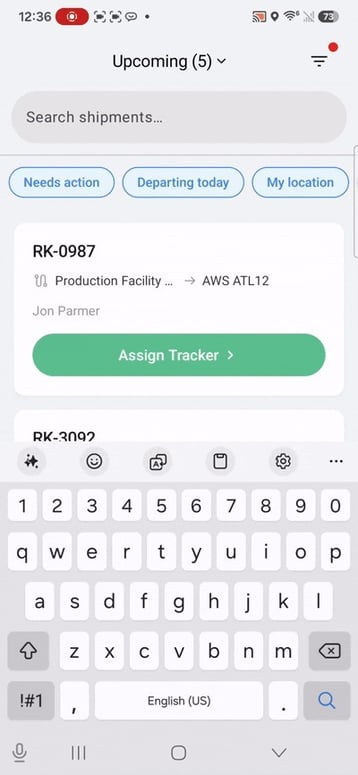
Open an Upcoming shipment and tap Assign Tracker. You can scan the tracker's barcode with your phone camera or type the serial number manually.
Before assigning, the app checks whether the tracker can be used on this shipment. If there's a problem, you'll see a message explaining why. The most common reasons:
- Already assigned — the tracker is currently on another active shipment.
- Low battery — you'll see a warning, but you can still proceed.
- Wrong account — the tracker belongs to a different account than the shipment.
- Date conflict — the shipment's departure date overlaps with another shipment using that tracker.
If you don't see the Assign Tracker button, check that the shipment is in the Upcoming view. Trackers can only be assigned before a shipment has started.
Multiple Trackers
Some accounts can assign more than one tracker to a single shipment. If your account has this enabled, you'll see an "Assign another tracker" option after the first one is attached. You can also remove individual trackers from a multi-device shipment.
If you don't see this option, it's not enabled for your account. Talk to your Tive contact if you need it.
Starting a Shipment
Once at least one tracker is assigned, a Start Shipment button appears on the shipment details page. Tap it to move the shipment to In-Transit.
The button won't appear until a tracker is attached.
Troubleshooting
"The barcode won't scan." Make sure your phone's camera has permission to access the Tive app. You can also type the serial number manually instead.
"It says my tracker is ineligible, but I think it should work." Check whether the tracker is still assigned to a previous shipment that hasn't been completed. A tracker can only be on one active shipment at a time.
"I don't see the Assign Tracker or Start Shipment buttons." These features are only available on Plus, Retail Plus, and Premium tiers, and only for Upcoming shipments.
Need Help?
If you have any additional questions, reach out to support@tive.com for help!