
Automatic Shipments Overview
Automatic Shipments lets you fully automate the most routine parts of managing your Tive shipments. With this feature enabled, you simply press start on a tracker and Tive manages the rest: it attaches the tracker to a new shipment, detects a new or existing origin (if the tracker is started within a known geofence), attaches alert presets automatically, and completes the shipment intelligently using known location data, light events, and idle behavior.
Packaging
This is available for customers on all platform tiers.
|
Essential |
Plus |
Premium |
|
✅ |
✅ |
✅ |
Getting started
- To enable this feature, navigate to the Automations tab in the global navigation bar.
- On the homepage, under Featured Templates, locate Automatic Shipments and click the Create My Automation button to open the configuration panel.
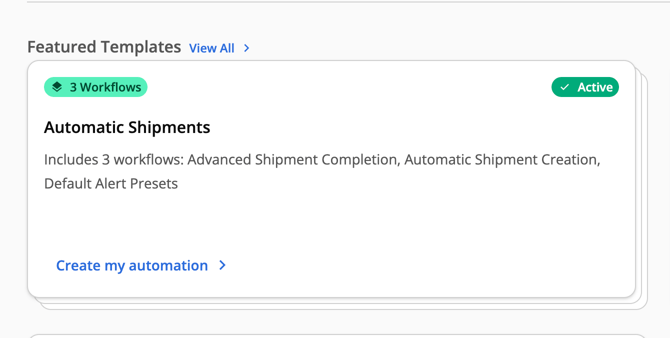
Note: Users must have the admin role to configure and enable this feature.
Automate the entire shipment lifecycle, or just parts of it
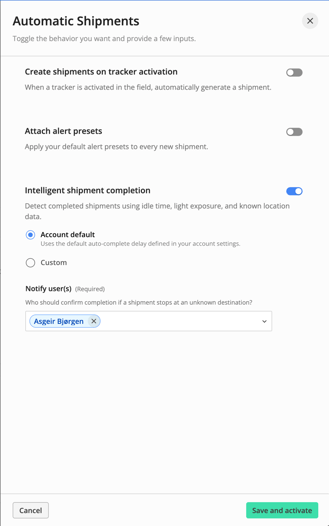
When you open the Automatic Shipments configuration panel, all functionality (including shipment creation, alert configuration, and intelligent shipment completion) will be enabled by default. However, you can choose whether you want the full shipment lifecycle automated (from start to completion) or if you want to enable specific smart functionality (i.e. just intelligent completion).
Use the toggles on the right of each section to enable or disable functionality.
Automatically create shipments when trackers are activated
With this workflow enabled, all you have to do is press Start on your tracker and the system will automatically create a shipment and attach the tracker. Follow the steps below to enable it.
Enabling automatic shipment creation
- With the Automatic Shipments configuration panel open, make sure that the Create shipment on tracker activation toggle is enabled.
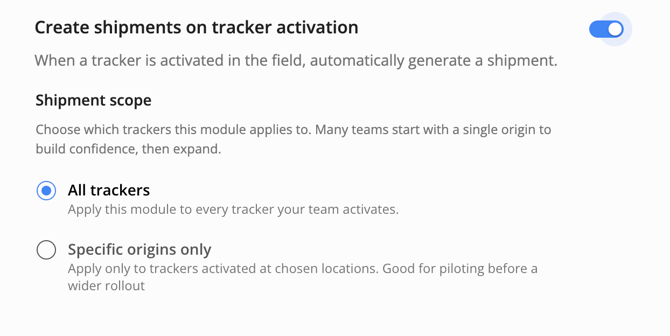
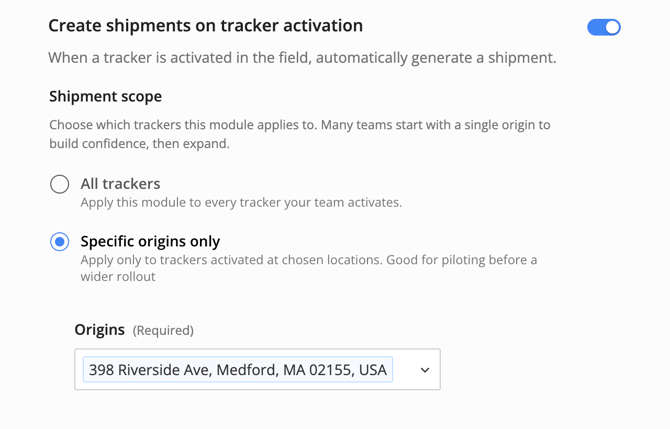
2. If you would only like automatic shipment creation enabled for trackers originating from specific locations, you can select Specific origins only under Shipment scope and choose the origin locations where you want this automation active. Any device activated outside of the origin locations you select will not have shipment created automatically.
How it works
- When a tracker is first activated in your account (i.e., not a reused device), this automation will automatically create and start a shipment with a shipment ID in the following format:
- {Tracker ID}-{Shipment Start Date}-{Origin City}
- The automation will immediately check the location of the tracker and determine whether it was activated:
- The newly created location will have the following attributes:
- Name:
- Radius:
- Type:
- a) inside of a saved location, in which case it will set the origin of the newly created shipment to the saved location OR
- b) outside of a saved location, in which case it will create a new location where the tracker was activated and set the origin of the newly created shipment to the new location.
Note: Shipments created via this automation will not have a defined destination location when they are started. This means that destination-dependent functionality (i.e. ETAs, route deviation alerts, etc.) will not work on these shipments.
Automatically attach alert presets
Alert presets are a critical tool for helping you detect and respond to in-transit risks to your shipments. With this automation, you can ensure that alert presets are consistently attached to your shipments when they are created, with no manual steps required. Follow the steps below to enable it.
Enabling automatic alert preset configuration
- The first step of enabling automatic alert preset attachment is to make sure that you have the presets created that you want attached to your shipments. Head to the Alert Preset page to configure these, and keep in mind that presets can be automatically attached to shipments in one of two ways:
- Default presets → one or more presets that are attached to all of your shipments when they are created. This is a good option if a) you are only shipping one good with consistent condition requirements or b) you want all shipments to have a basic set of alerts (i.e. arrival and departure).
- Origin-based presets → presets attached directly to a saved location where you plan to start your shipments. When a shipment is started inside one of these locations, the alert presets will be automatically added to your shipment.
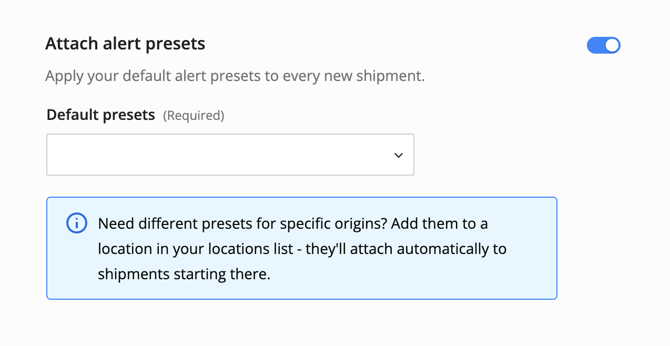
3. To configure default presets that will be applied to every shipment that is created in your account, simply select them from the dropdown below.
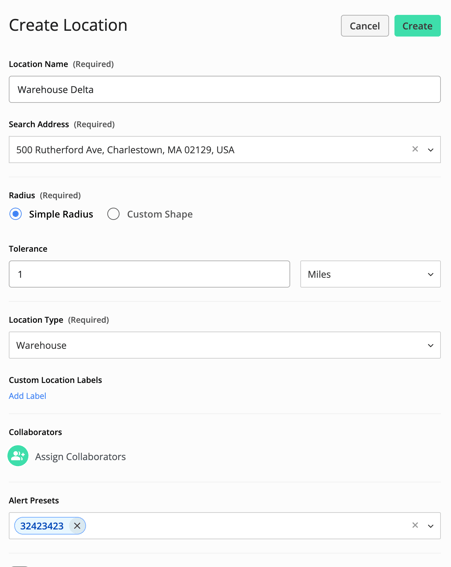
4. To configure origin-based presets, head to the Locations page. Once there, you can edit an existing location or create a new one. Look for the Alert Preset dropdown at the bottom of the page and attach the presets that you would like shipments to receive when they are started at this location.
How it works
- When a shipment is created (automatically, manually, or via API), this automation will:
- a) automatically attach default alert presets to the shipment
- b) check if the shipment’s origin location has alert presets mapped to it and attach them
- Alert presets are attached additively, meaning that presets attached through an origin mapping do not erase or overwrite default presets or presets that were added manually.
- For shipments that are automatically created, it’s important to note that destination-dependent alerts (i.e. ETA, route deviation) and functionality will not work properly.
Intelligently complete shipments
Knowing when your shipment has reached its final destination helps you understand whether or not it still needs to be monitored for potential risks. Intelligent shipment completion uses advanced logic to determine when your shipment has likely reached its final destination and, depending on confidence level, will notify you of shipments that require your review before completing them.
Enabling intelligent shipment completion
- Start by heading to the Automatic Shipments configuration panel (Automations > Automatic Shipments > Create/Edit my automation) and ensure that the Intelligent shipment completion toggle is enabled, as shown below.
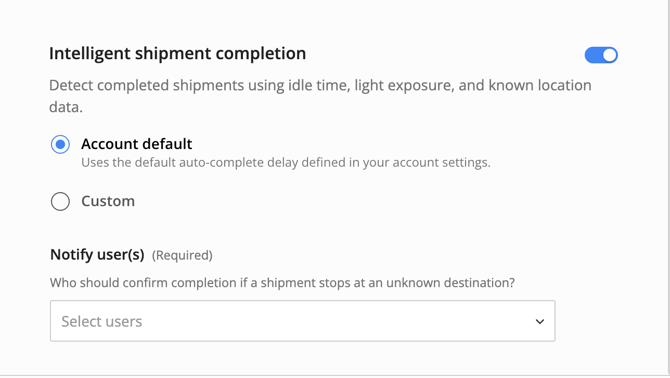
- You will also need to provide two required inputs:
- Idle time required to complete at a known destination → this is the amount of time your shipment must stay within a known destination (i.e. saved location with a destination label) before the shipment will be automatically completed. By default, this is set to the completion delay that is configured in your account-level settings, but you can choose a custom option as well.
- Users to notify → these are users who will receive an email if we think your shipments should be completed outside of a known destination. They will be required to confirm that the shipment has reached its final destination by reviewing the most recent stops.
How it works
- If a shipment idles at a known destination (i.e., a location with a “Destination” label) for the configured completion delay, the shipment will be automatically completed and the shipment’s destination will be updated to the location in which it idled.
- Any collaborators associated with the destination will gain shipment access at this time and will receive the automatic shipment report if configured.
- If our algorithm detects that your shipment has likely reached its destination, but it is not within a known geofence, we will send an email to the users you defined in the configuration panel to review and decide if the shipment should be completed.
- If the user decides to complete the shipment, they will be asked to create a new destination location as part of this process. Once the location is created, the shipment destination will be updated to the newly created destination.
Note: If future shipments idle in this location for the configured completion delay period, we will automatically complete the shipment (with no action required from a user to confirm).
Constraints
- Automatic shipment creation and intelligent shipment completion work best for single-leg road shipments and should not be used for the following types of shipping scenarios:
- LTL or Multi-Drop, where the tracker is frequently exposed to light in transit
- Ocean & Air shipments
- Multi-Tracker Shipments (though we plan to support shipments with Temperature Beacons and Security Seals soon)
- Automatic shipment creation does not currently support the collection of additional shipment data (i.e., custom shipment IDs, custom fields, etc) beyond the basics the Tive system requires (origin location, start time, alert presets).
- Automatically created shipments will have no destination until they are intelligently completed. This means that destination-dependent features will not work (ETAs, route deviation alerts, inbound alerts, etc.).
- Automatically created shipments cannot be completed manually while they are in transit. To complete them, customers must use the shipment stop timeline.
- Automatic shipment generation only works for single-use devices.
FAQ
- What does that shipment completion algorithm use to determine that a shipment is likely at its final destination?
- The algorithm uses a combination of idle behavior, known location context, and light signals to determine whether your shipment is at its final destination.
-
- Light signals: The algorithm looks for light signatures that indicate a door or package opening.
- Known location context: The algorithm verifies that the suggested destination is not a known truck stop or rest area where shipments are expected to idle during transit.
- Idle behavior: The algorithm identifies periods of long dwell that indicate the shipment has stopped moving.
-
- The algorithm uses a combination of idle behavior, known location context, and light signals to determine whether your shipment is at its final destination.
- Can I still use intelligent shipment completion even if my shipment wasn’t automatically generated?
-
- Yes, you can follow the steps to enable intelligent shipment completion in the article.
- If a shipment is started inside of a location that was not created in my account (i.e., it was shared from another account or another organization), will that location be detected and set as the shipment’s origin?
- Yes, as long as the location has been shared with the organization in which the tracker is being activated.
- How will integration work with this? If we have a customer who is integrated but wants to enable this just in case there was an error with the integration, could we have this enabled as a backup?
- Need to evaluate on a case-by-case basis - need to ensure we aren’t creating conflicting shipments.
- Can you edit the alert preset after creation, as normal?
- Yes
- What if we need different alert presets based on the destination, rather than the origin?
- No mechanism for destination-based alerts yet; these shipments won't have a known destination at the time of creation.
- Can the shipment ID rule be customized?
- No, shipments can be manually renamed, but no way to customize the rule right now.
- Can I use this template on top of the “complete with light”?
- No
- Will beacon and seal shipments be supported?
- Seal & beacon support coming soon; automatically attach seal cut and separation alerts - targeting mid july support.
- If we turn this on for retailers, with a shared location, will it attach the collaborators later on when it reaches the geofences?
- Yes
Available Templates: Complete Shipments Automatically
On this page
- What these templates do
- Template: Complete Shipment on Unloading
- Template: Intelligent Shipment Completion
- Before you start
What these templates do
For a shipment to complete at the exact phase of the shipment journey that best serves your use case requires manual monitoring and completion. That manual step is easy to forget, and forgotten shipments distort your analytics and leave stale shipments lingering in your in-transit list.
These templates remove the manual steps required for the desired shipment completion timing. You pick the arrival signal that matches how your shipments actually behave, turn the template on once, and the Tive Workflow marks shipments complete on its own.
|
If you want to close a shipment when… |
Use the template... |
|---|---|
|
The tracker detects light at the destination (e.g., doors opening for unloading) |
Complete Shipment on Unloading |
|
The tracker has gone idle at the destination |
Intelligent Shipment Completion |
Template: Complete Shipment on Unloading
Goal
Automatically close out shipments when the tracker detects arrival, so your team doesn't have to manually mark shipments complete.
What it does
When a light alert fires while the shipment is inside its destination geofence, this workflow marks the shipment as Completed. A light event at the delivery site, typically a container or trailer being opened for unloading, is a strong ground-truth signal that the goods have arrived.
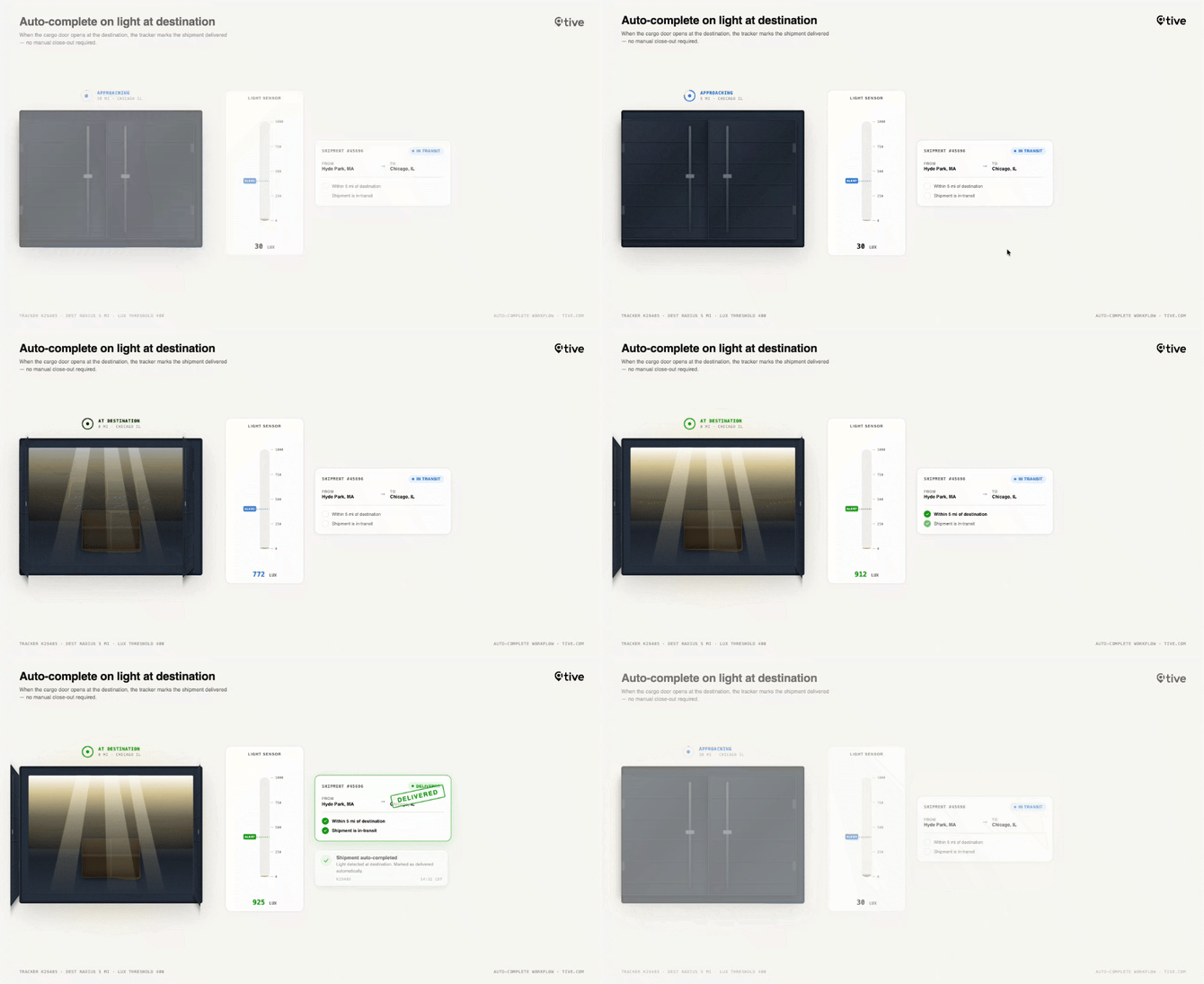
Disclaimer: This graphic is to demonstrate concepts and does not directly match platform functionality.
Why a light alert
A light event near the destination is a strong ground-truth signal that the goods have arrived and been opened for unloading. Unlike a status update from a carrier system, this comes directly from the device's sensor, so it reflects what physically happened to the shipment.
How the destination is determined
The trigger is the light alert occurring inside the destination's geofence, not within a fixed radius. The geofence is whatever you've configured for that location when setting up your locations and shipments, so its size and shape are under your control.
The workflow evaluates against the final leg's destination address. On a multi-leg shipment, intermediate stops don't count, only the last destination does.
When the tracker detects light while inside the destination geofence, typically when doors open for unloading, it takes that as the ground-truth signal that the goods have arrived and marks the shipment complete on its own.
Preconditions
This template depends on the Light alert. It's what tells the workflow the shipment has arrived. Configure the Light alert to trigger at the destination, and keep it applied to the shipments you want closed automatically. If the alert isn't applied or isn't set to fire at the destination, the workflow never starts, and the shipment won't auto-complete.
Best Practice: If you leverage light alerts to protect your shipments in transit already, create a separate alert preset to only trigger at the destination, without notifications, to reduce alert noise while still taking advantage of this automatic completion workflow.
Notifications are optional. If you want to be told when a light alert triggers at the destination, which will trigger shipment completion, add recipients in the template's configuration. If you'd rather complete shipments silently, leave the recipient list empty. The shipment still closes, you just won't get an email about it.
In Platform Experience
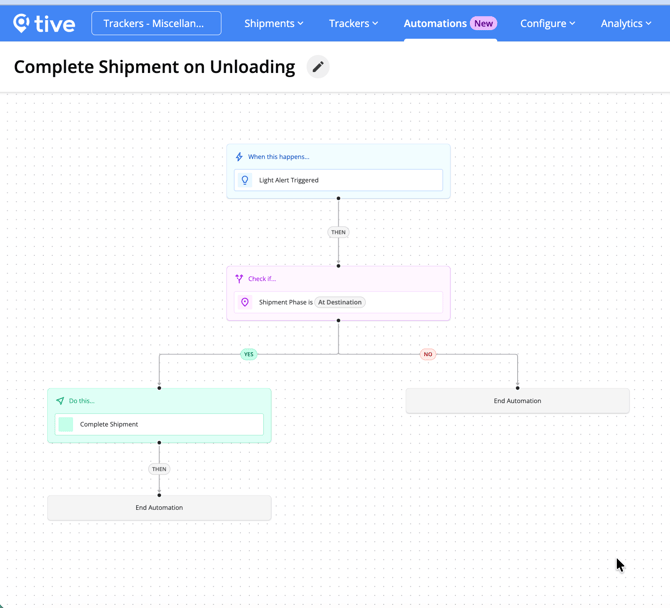
Logic
- Trigger: Light alert detected within the destination geofence.
- Action: Sets shipment status to Completed and posts a timestamped comment to the shipment.
Editing Options
|
Allowed |
Not allowed |
|---|---|
|
Toggle the workflow active/inactive |
Change the trigger type |
|
Add/remove/reorder steps |
Things to know
A few edge cases can cause this workflow to complete a shipment when you might not expect it to:
- Light alert after leaving the destination: If a shipment reaches its destination without a light alert, then leaves, and a light alert fires afterward, the workflow may still mark the shipment complete even though it's no longer at the destination.
- Light alert after a new destination is added: If a leg is added after the original destination is reached (A→B becomes A→B→C), a light alert fired away from the new destination (C) may still complete the shipment. The workflow relies on the destination it has already reached rather than re-checking against the current active destination.
Template: Intelligent shipment completion
Knowing when your shipment has reached its final destination helps you understand whether or not it still needs to be monitored for potential risks. Intelligent shipment completion uses advanced logic to determine when your shipment has likely reached its final destination and, depending on confidence level, will notify you of shipments that require your review before completing them. For more details, see the article here.
Before you start
These templates apply to every workflow in Tive Workflow Automations:
- You need the ‘Edit Workflows’ permission to view, turn on, or turn off workflows. Admins have this permission by default and can grant this permission to others.
- Seeing what a workflow did: Workflows run quietly, with no indicator on your shipment list. Every action Workflow Automations takes is recorded as a timestamped comment in the shipment's Comments section.
- By default, only Admin users can see, edit, activate, or deactivate workflows. However, Admin users can grant the Add/Edit Workflows permission to other roles under Users → Manage Roles.