
What this template does
When a temperature alert fires on a shipment that is already on the road, the first question is almost always the same: what is the reefer actually set to?
A temperature reading outside your range can mean several very different things. The reefer may be set to the wrong temperature. The unit may have failed. Or the tracker may be sitting somewhere in the trailer that reads warmer or colder than the rest of the load. You cannot tell which from the reading alone, and until you know, there is nothing useful to do. So somebody on your team emails the carrier, asks for a photo of the reefer display, and waits.
This template does the asking and the waiting for you. The moment a temperature alert fires, it emails your carrier to request a photo of the reefer temperature display. It then holds for a reply. Whatever comes back, a photo, a text-only answer, or nothing at all, is forwarded to your monitoring team and posted on the shipment, with any photos attached.
What you get: the request goes out within seconds of the alert instead of whenever somebody notices it, and every reply lands in front of a person, in every outcome.
What it deliberately does not do: it does not judge what the photo means, and it does not tell the carrier to change the reefer setpoint. Those calls stay with your team. Think of it as a dispatcher, not a decision-maker. It gets the message, writes it down, and puts it on the right desk. Deciding what to do about it is still your job.
Availability
Platform Tiers: Essential, Plus, and Premium
|
Essential |
Plus |
Premium |
|
✅ |
✅ |
✅ |
Automation Tier: Scaled
This template uses credits. It contains an advanced step, so each run draws from your monthly workflow credit balance. Steps that consume credits are marked Uses credits in the template view, and your remaining balance is shown in the Automations area. See Credits and usage for how counting, limits and monthly resets work.
Before you turn it on
Two things need to be true, or the workflow will never do anything.
1. Your shipments need a temperature alert preset applied.
This workflow is started by a temperature alert. It does not monitor temperature itself and it has no thresholds of its own. It inherits whatever your alert preset defines as out of range.
If a shipment has no temperature alert preset applied, no alert fires, so the workflow never triggers. Activating the template is not enough on its own. Check your alert presets first, and make sure they are applied to the shipments you want covered.
If you have internal temperature bands you work to, a freezing band, a cold band, a warm band and so on, set those in the alert preset. The workflow will follow whatever the preset says.
2. Carriers must reply to the email they received.
The workflow recognises a reply by matching it to the original email conversation. That means:
- ✅ The carrier hits Reply on the request email → the workflow picks it up.
- ❌ The carrier composes a brand-new email, or replies from a different address than the one the request was sent to → the workflow does not see it, and keeps waiting until it times out.
It is worth telling your regular carriers this once, up front. "Reply to the email, do not start a new one" is the single biggest thing that determines whether this works in practice.
How it works, step by step
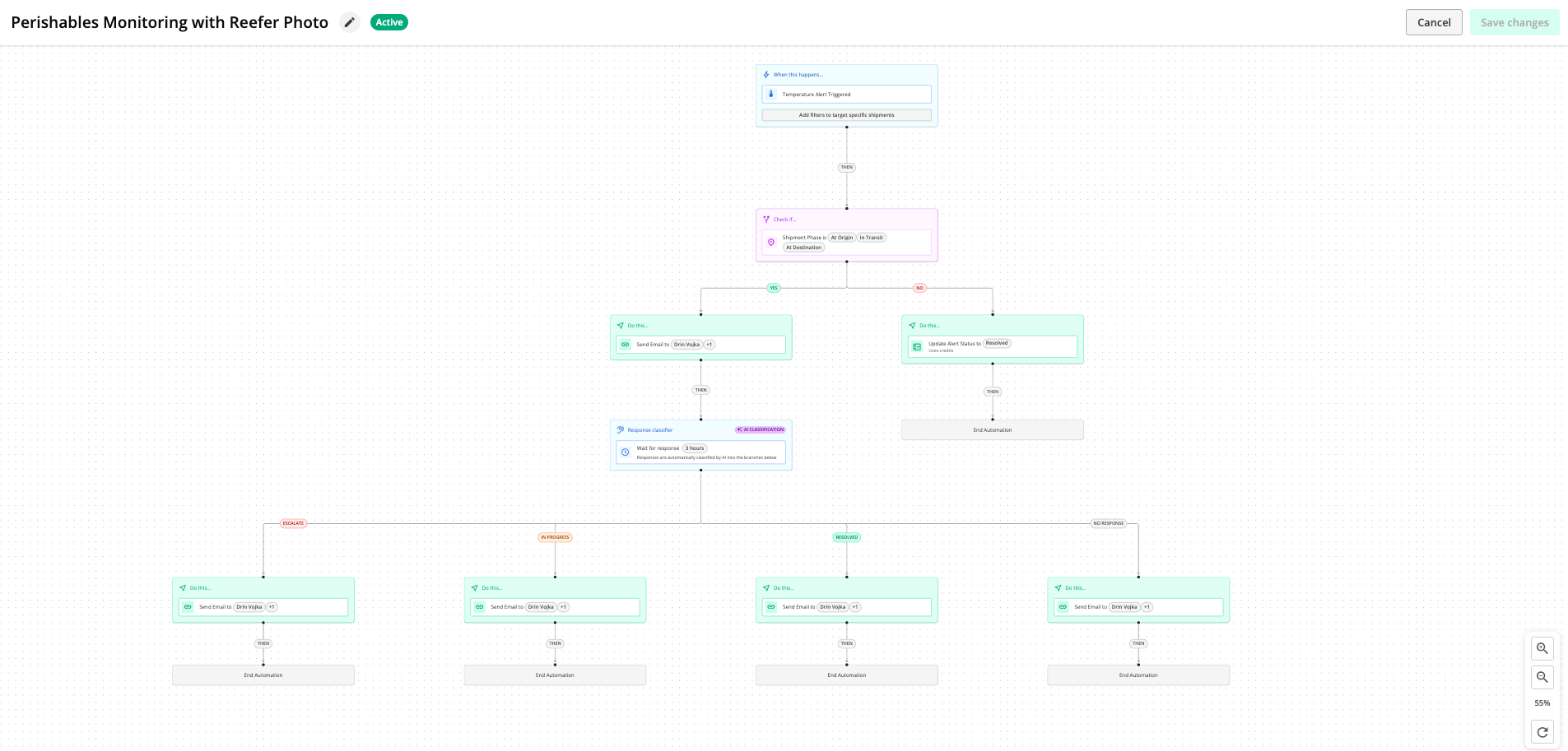
It starts when a temperature alert fires
A qualifying temperature alert on a shipment starts the workflow. Nothing else triggers it.
Step 1 - Is the shipment actually in transit?
The workflow first checks whether the shipment is on the road, as opposed to sitting at origin or destination.
Why: temperature swings during loading and unloading are normal. Doors are open, the load is exposed, and the reading naturally moves. Chasing the carrier for a photo in that window creates noise and trains people to ignore the alerts that matter.
- Not in transit (at origin or destination): the alert is resolved automatically, a note explaining why is posted to the shipment's Comments, and the workflow ends. No email is sent to the carrier.
- In transit: the workflow continues to Step 2.
Step 2 - The photo request goes out
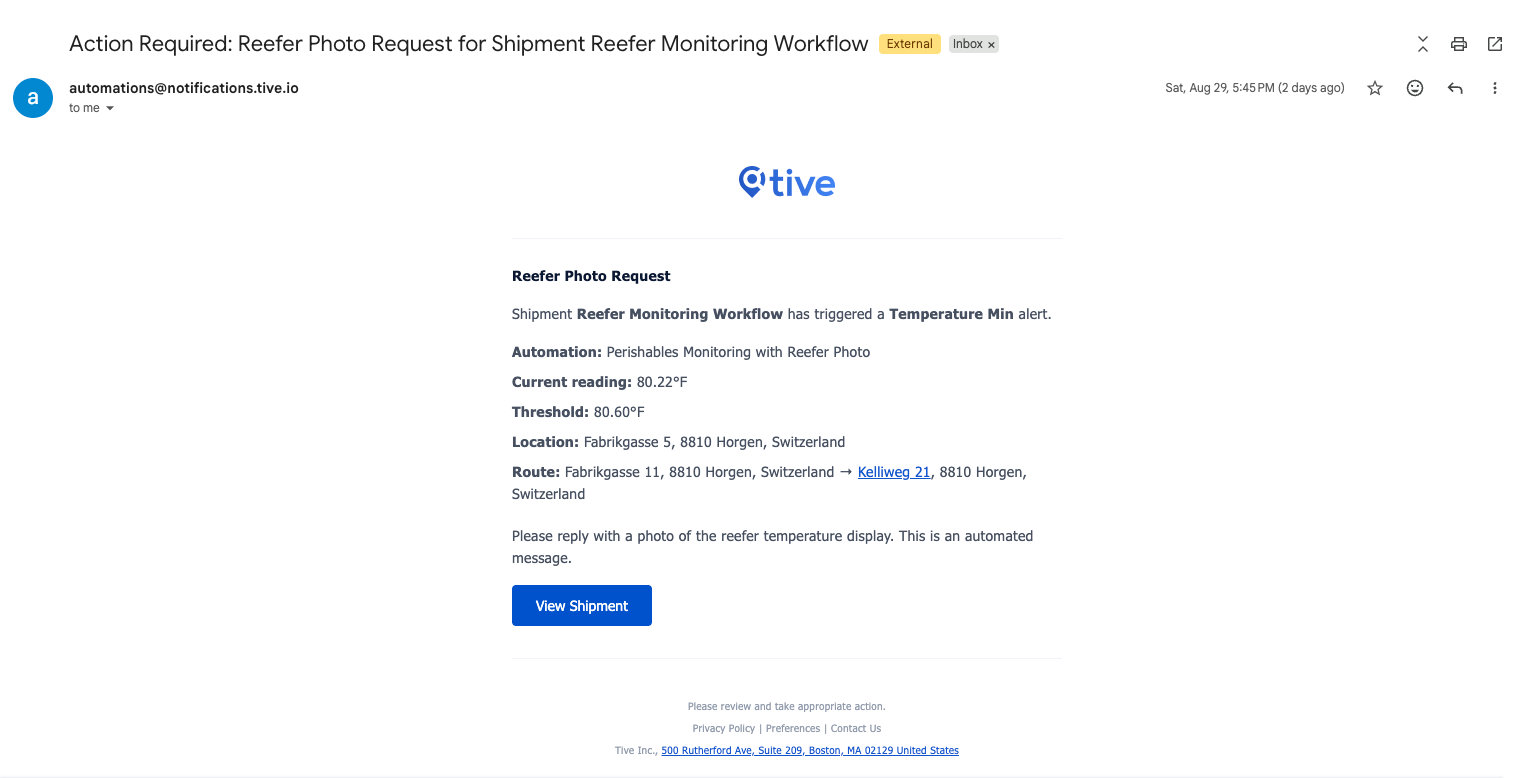
The workflow emails your configured recipients, typically the carrier or the carrier's dispatch contact, with a request for a photo of the reefer temperature display.
Subject line: Action Required: Reefer Photo Request for Shipment [shipment ID]
The email includes:
- The type of alert that fired
- The current temperature reading
- The threshold that was breached
- The shipment's current location
- Origin → destination
- A link to the shipment
The ask: reply with a photo of the reefer temperature display.
The send is recorded as a timestamped comment on the shipment, attributed to Tive Automation, so there is always a record of what was asked and when.
Step 3 - The workflow waits
The workflow then holds and waits for a reply. The default wait is 60 minutes, and you can change it when you configure the template.
It checks every incoming reply on that email conversation as it arrives. You are not waiting for the full window to elapse before anything happens. A reply after four minutes is acted on after four minutes.
Step 4 - A reply arrives in time
The reply is forwarded to your monitoring team, with any photos attached to the email.
This happens on every reply, whatever it says. The workflow does not read the reply and decide whether it was a good enough answer. A photo, a one-line "will check", or an unrelated question all take the same path: straight to your team.
The reply is also posted as a comment on the shipment, with any photos shown inline. See Photos and files on replies below.
Step 5 - The wait runs out with no reply
If nobody replies before the timeout, the workflow notifies your monitoring team that no communication was received, records the outcome in Comments, and ends.
You still get told. Silence is an outcome, not a dead end and in practice a carrier who does not answer within the hour is itself information worth acting on.
If the alert resolves while the workflow is waiting
If the temperature comes back into range and the alert resolves, whether the platform resolves it automatically or someone on your team resolves it by hand, the workflow stops. No further emails go out.
This is deliberate. Once the problem has gone away, chasing the carrier for a photo of it wastes their attention and yours.
Photos and files on replies
When a carrier replies, everything they attach is captured and shown to you in two places: attached to the email your monitoring team receives, and on the shipment's Comments feed.
Both kinds of photo are captured
Depending on the carrier's email app, a photo arrives in one of two ways, as a proper file attachment, or as an image pasted into the body of the message. Phone cameras very often produce the second kind.
You do not need to care which. Both are captured and shown the same way. A reply with no attachment at all is still forwarded; it simply arrives with nothing attached.
What your monitoring team receives by email
The forwarded email arrives with the carrier's photos and files attached, ready to open or save.
If one file cannot be retrieved for some reason, it is skipped and the email still sends with everything else. You are never left with nothing because one attachment failed.
What appears on the shipment
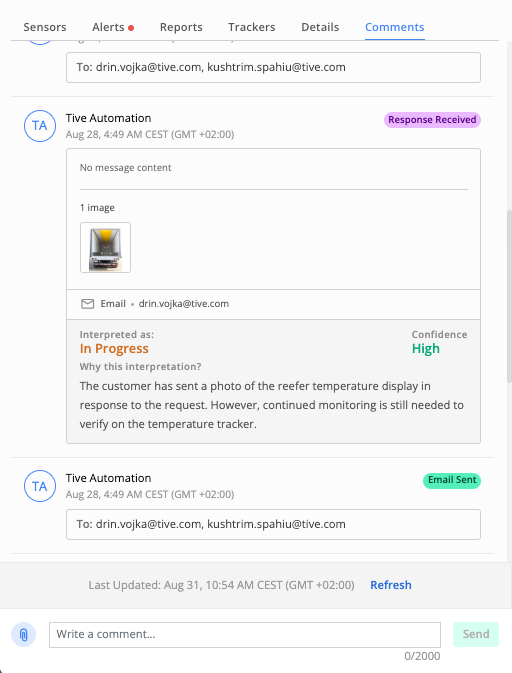
On the shipment's Comments feed, the automation's comment shows the reply along with everything attached to it:
- A summary line above the attachments telling you what came in, for example, 3 images · 2 files. It does not appear when there was nothing attached.
- Photos appear as small thumbnails in a grid, so you can see at a glance whether the carrier actually sent a picture. Four thumbnails are shown at once. If there are more, the fourth position becomes a +N tile telling you how many are hidden.
- Click any thumbnail to open the photo full-screen. From there you can move to the next or previous photo, download the one you are looking at, and close the viewer with Esc or the close button. Clicking the +N tile opens the viewer straight at the first hidden photo.
- Anything that is not a JPEG or PNG image such as a PDF, a document, a HEIC photo from an iPhone appears as a named row with a download link rather than a thumbnail. Clicking it downloads the file immediately.
- When there are more than three files, the list shows the first three with a Show more / Show less toggle. (This applies to the file rows. Extra photos are handled by the +N tile instead.)
- Download all appears whenever there are two or more attachments and gives you everything in a single zip. It takes a moment to prepare on larger replies. It does not appear when there is only one attachment as there is nothing to bundle.
Setting it up
Workflow templates are configured and activated from the Automations area, and require the Admin role.
- Open the Automations tab and find Perishables Monitoring with Reefer Photo in the template library.
- Select Use Template to open the configuration panel.
- Fill in the settings below.
- Save. The workflow becomes Active and starts covering eligible shipments immediately.
|
Setting |
What it controls |
|
Reefer photo request recipients |
Who receives the photo request, normally the carrier or carrier dispatch. |
|
Response timeout |
How long the workflow waits for a reply before giving up. Default 60 minutes. |
|
Monitoring team recipients |
Who the reply, or the no-reply notice, is forwarded to. Normally your own monitoring inbox or team. |
|
Active / inactive |
Turn the workflow on or off. Standard on all templates. |
As with all workflow templates, you configure the settings but not the logic. You cannot add, remove or reorder the steps, or change what triggers it. That is what keeps the template predictable and it is why the trigger thresholds live in your alert preset rather than in the workflow.
Good to know
A short list of things that will save you a support ticket.
One active workflow per template. You can run a single workflow from this template at a time. This is standard across Workflow Automations. Configure one that covers what you need rather than several variants.
Replies must stay on the same email thread. Worth repeating, because it is the most common reason a reply appears to be ignored. A carrier who starts a fresh email, or replies from a different address, is not matched to the shipment. Their reply is not lost. It just lands wherever that email was sent, not on the shipment.
Keep replies reasonably small. There is a size ceiling on the emails the workflow can process. Ask carriers for one clear photo of the display, not a burst of five. One photo is also faster for the driver and easier for your team to read.
A late reply does not reopen a closed request. Once the workflow has ended, because it timed out, because the alert resolved, or because it completed, a reply arriving afterwards will not restart it. Set your timeout to match how quickly your carriers realistically respond. If an hour is optimistic for your lanes, make it longer.
One alert, one request. Each qualifying temperature alert starts its own run. A shipment that alerts again later gets a fresh request.
iPhone photos may arrive as files rather than thumbnails. iPhones default to the HEIC format, which some email apps pass through unconverted. The photo is captured and downloadable either way. It just shows as a file row instead of a preview thumbnail.
Common questions
Does the workflow decide whether the carrier's answer was good enough?
No. Every reply is forwarded to your team regardless of content, and regardless of whether a photo was actually attached. A person makes that call.
What if the carrier replies with text but no photo?
Exactly the same thing as if they had sent one: the reply is forwarded and posted on the shipment. There is no separate no-photo path.
What if the alert resolves while we are still waiting?
The workflow stops and no further emails go out.
Does this change the reefer setpoint, or tell the carrier to change it?
No. It requests evidence and delivers it. Any instruction to change the setpoint comes from your team.
Why hasn't it triggered on a shipment with an obvious temperature problem?
Two likely causes, in order. First, no temperature alert preset is applied to that shipment, so no alert ever fired. Second, the shipment was at origin or destination rather than in transit, in which case the workflow resolves the alert and ends by design. Check the shipment's Comments for the note.
Where do I see what the automation did?
The shipment's Comments feed. Every action the workflow takes, the request sent, the reply received, the outcome, the reason it ended, is posted there as a timestamped comment attributed to Tive Automation.