
- What these templates do
- Risk Event vs. Likely Theft
- Get more data when a shipment is at risk
- Template: Risk Event Monitoring
- Template: Route Deviation Event Monitoring
- Template: Likely Theft Escalation
- Template: Red Zone Stop Escalation
- Before you start
What these templates do
When a shipment shows signs of theft, diversion, or unauthorized handling, two things help: more data about what's happening, and the right people knowing about it fast. These templates automate both responses to common security situations, so your team doesn't have to catch them manually.
Templates vary in their response to high-risk events:
|
If you want to… |
Use the template... |
|---|---|
|
Get denser tracking data when a risk signal appears mid-journey |
Risk Event Monitoring or Route Deviation Event Monitoring |
|
Notify your team when a shipment makes a suspicious stop near its origin or destination |
Red Zone Stop Escalation |
|
Escalate and tighten tracking only on high-probability theft (two signals at once) |
Likely Theft Escalation |
The Risk and Route Deviation Event Monitoring templates tighten tracking. They raise reporting frequency and turn on GPS. Stop Escalation notifies people. Likely Theft does both, but only when two risk factors line up. They address different moments in a security incident and can run alongside each other.
Risk Event vs. Likely Theft
Risk Event Monitoring reacts to any one risk signal (light, a stop, or a geofence crossing) outside a defined safe zone. Likely Theft Escalation is stricter. It only fires when two signals line up at once: light and a confirmed stop, outside safe zones. Use Likely Theft when you want to cut false alarms to the minimum and escalate only on high-probability theft. Use Risk Event when you want to react to a wider range of single signals.
Best Practice: Pick one - Risk Event or Likely Theft, not both. These two templates respond to overlapping situations. Both react to light outside safe zones. Running them together means a single event can trigger both, double-notifying your team and competing to change the same tracker settings. Choose the one that fits how you want to respond: Risk Event for a broad single-signal reaction, Likely Theft for a stricter two-signal escalation.
Get more data when a shipment is at risk
Your trackers report on a fixed schedule, which is fine when a shipment is moving normally. But when something looks wrong, that schedule is too slow. You want more frequent location and condition data exactly when risk goes up, and you don't want to reconfigure the device manually to get it.
These two templates do that automatically. They watch for a risk signal, and when one appears outside an expected location, they raise the tracker's transmission and measurement frequency to 5-minute intervals, turn on GPS, and notify your team; then revert after an hour to protect battery life.
They are the same template under the hood. The only difference is the signal that starts them.
You must apply the underlying alert to your shipments first. These workflows are started by an alert - a light, prolonged-stop, geofence, or route-deviation alert. If that alert isn't applied to a shipment, it never fires, the workflow never triggers, and nothing happens. Applying the template is not enough on its own: the alert that triggers it has to be active on the shipments you want covered.
Preconditions
Risk Event Monitoring
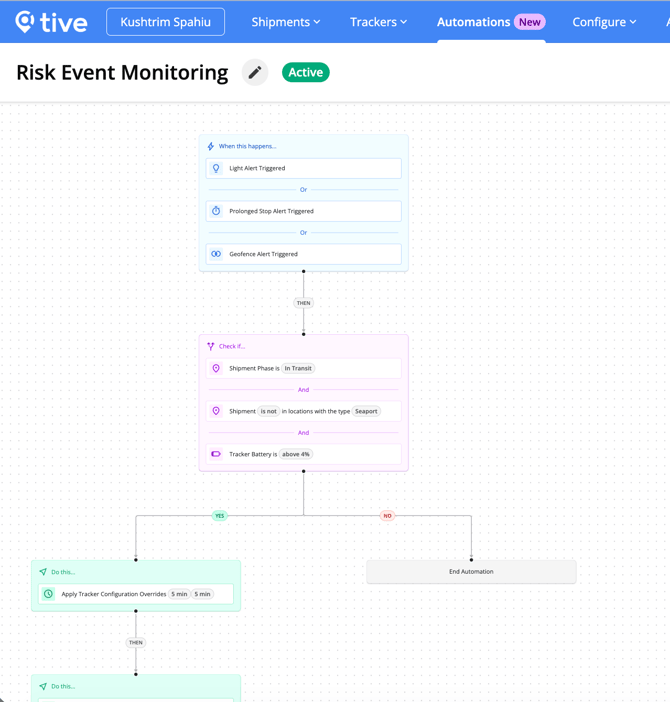
What alerts you need: A light, prolonged-stop, or geofence entry/exit alert, applied and set to trigger in transit. The workflow starts when any of these fires outside an expected zone, so at least one must be active on the shipments you want covered. If none are applied, nothing triggers the workflow.
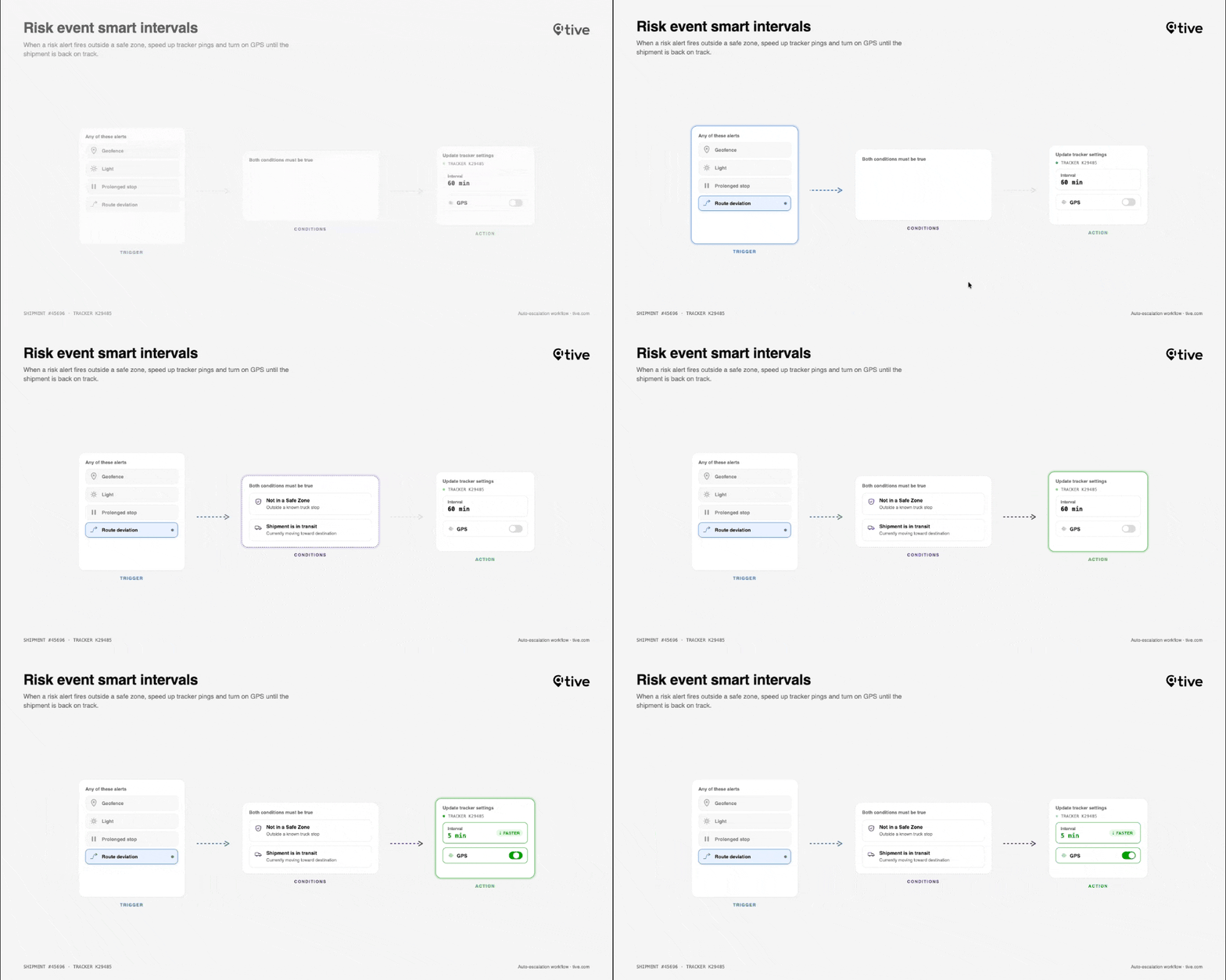
Disclaimer: This graphic is to demonstrate concepts and does not directly match platform functionality.
Route Deviation Event Monitoring
What alerts you need: A Route Deviation alert built from Tive Suggested Routes and set to trigger in transit. This is the critical detail. If the alert was created using "Extract Routes from Shipments" instead, this workflow will not fire. Make sure the Route Deviation alert on your shipments uses Tive Suggested Routes.
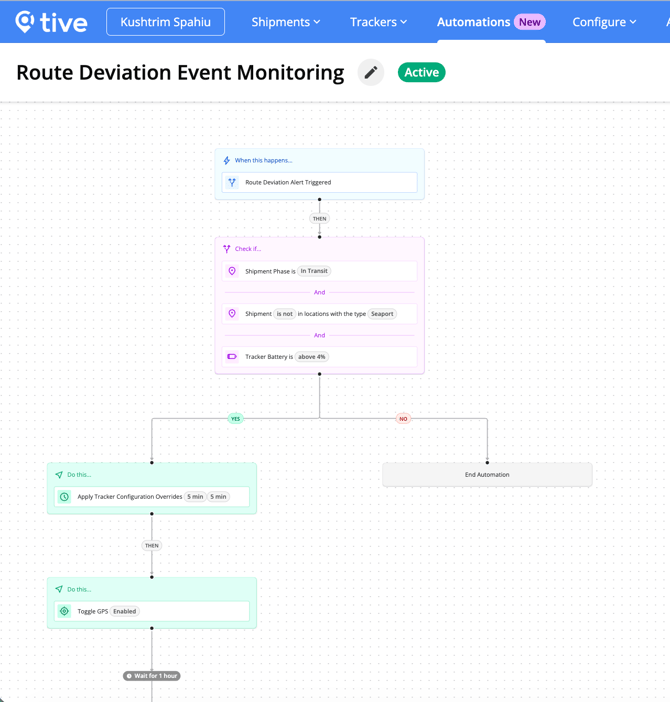
How they work
The core idea. When the trigger fires at an expected stop, the workflow treats it as routine and does nothing. When it fires anywhere else, it treats it as a possible risk: it tightens reporting, turns on GPS, and notifies your team. A truck stopping or opening its doors at a planned break is normal; the same behavior on an empty stretch of highway is not.
How the zones work. Adding a zone to the template silences the trigger inside it, it does not arm the workflow there. To get notified in a risky area, leave that area out of the configured zone set. You can edit which zones count as expected; any zone you don't include is treated as risky.
Logic
- Trigger: (differs by template — see below)
- Conditions:
- Shipment phase — whether to watch at origin, destination, in transit, or all.
- Outside a safe zone — the event is only escalated if it happens outside a recognized safe zone. Admins can change which zones count during setup.
- Battery level — if the battery is too low to sustain elevated reporting, the workflow ends without changing settings.
- Action: Raise transmission and measurement frequency to 5-minute intervals, turn on GPS, notify, and post a shipment comment.
- Then: Hold the 5-minute intervals for one hour, then revert to the original settings to preserve battery.
Configuration
|
Allowed |
Not allowed |
|---|---|
|
Select which zones count as expected stops (default: Service Stops). For step-by-step instructions on creating and editing locations, see Configuring locations here. |
Change the trigger |
|
Select the device settings to switch to |
Add/remove / reorder steps |
|
Select notification recipients |
|
|
Adjust the battery level at which the workflow doesn't run |
|
|
Toggle the workflow active/inactive |
Constraints
- One workflow per template. You can run only one active workflow from each template at a time. For example, one Risk Event Monitoring workflow, not two.
- Manual override: if someone manually changes the device settings while a workflow is running, Workflow Automations stops and defers to them. A later trigger event re-engages a fresh instance.
- Elevated frequency drains the battery faster. The one-hour revert limits this, but account for it on long lanes.
Risk Event Monitoring
Packaging
This is available for customers on the Plus and Premium platform tiers.
|
Essential |
Plus |
Premium |
|
❌ |
✅ |
✅ |
Trigger: A light alert, prolonged-stop alert, or geofence entry/exit alert.
Use this when your risk signals are behaviors, a container opening, an unplanned stop, or crossing a boundary, that are fine at expected stops but suspicious elsewhere.
Route Deviation Event Monitoring
Packaging
This is available for customers on the Plus and Premium platform tiers.
|
Essential |
Plus |
Premium |
|
❌ |
❌ |
✅ |
Trigger: A route-deviation alert. This workflow only works with Route Deviation alerts built from Tive Suggested Routes. When you create the alert preset, you'll choose how routes are created. If you select Extract Routes from Shipments instead, this workflow will not fire. Make sure the Route Deviation alert on your shipments uses Tive Suggested Routes.
Use this when route adherence is your main risk signal and you want to react the moment a shipment goes off path.
Red Zone Stop Escalation
Packaging
This is available for customers on the Plus and Premium platform tiers.
|
Essential |
Plus |
Premium |
|
❌ |
✅ |
✅ |
Introduction
High-value shipments often carry a no-stop rule in the first mile. A common cargo-theft prevention practice, written into the standard operating procedures of customers moving high-value freight, requires drivers to run at least 250 miles after pickup without stopping, treating an early unscheduled stop as a red flag for theft or diversion.
We built this template around that rule. Its default distance threshold is 250 miles, matching the most common version of the no-stop requirement, so for many security teams it works out of the box with no reconfiguration. If your SOP uses a different distance, you can change it during setup.
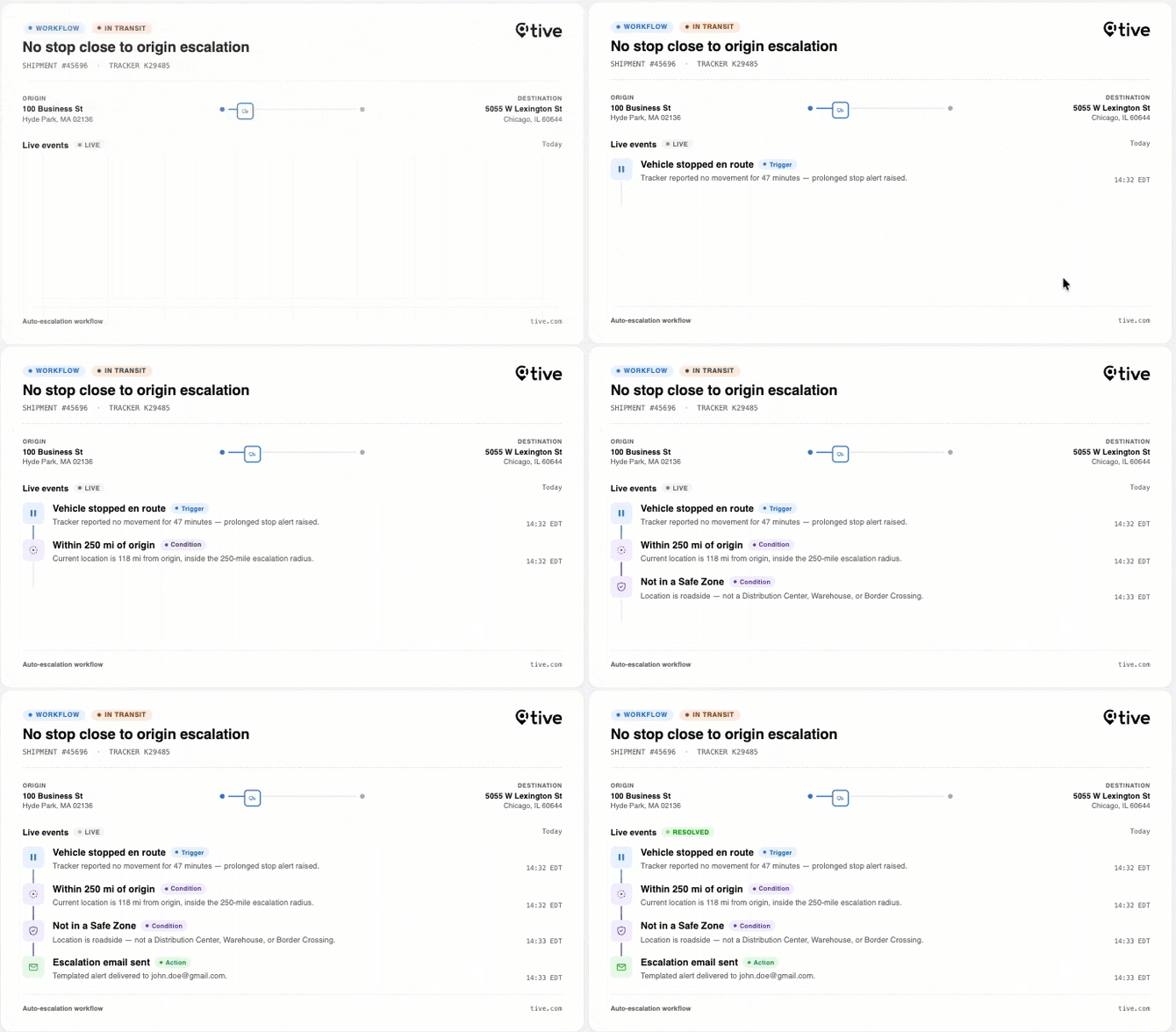
Disclaimer: This graphic is to demonstrate concepts and does not directly match platform functionality.
Goal: Automatically escalate suspicious stops in the first and last mile to your security team, so high-risk stops get a human looking at them right away.
Preconditions
This template depends on the Prolonged Stop alert; it's what starts the workflow. The alert fires when a tracker stays stationary longer than its configured stop threshold, and that's the event this template acts on. Keep a Prolonged Stop alert applied to the shipments you want covered; if it isn't applied, the workflow never starts. Additionally, configure the Prolonged Stop alert to fire in transit. The workflow only acts on stops while the shipment is moving through its journey, so the alert needs to be set to trigger during the in-transit phase. If it's scoped to a different phase, the stops this template watches for won't generate the alert that starts it.
How it works
This template works differently from the Risk and Route Deviation Event Monitoring templates. It doesn't change how the tracker reports; its job is to notify people. It watches for a prolonged stop, checks whether the stop is genuinely suspicious, and if so, sends an escalation email.
Trigger. The workflow starts when a Prolonged Stop alert fires for a shipment, when Tive's sensor data detects that the tracker has been stationary longer than the configured stop threshold in the alert.
What it checks. Once triggered, Workflow Automations checks two conditions, and both must be true for an escalation to go out:
- Close to origin or destination: Is the stop within the configured distance of the shipment's origin or destination? Default is 250 miles (402 km). Admins can change this and switch between miles and kilometers during setup.
- Outside a safe zone: Is the stop not inside a recognized safe zone? Safe zones are your account's saved locations with a node type of Warehouse, Distribution Center, or Border Crossing. A stop inside one of these is treated as expected and not escalated. You can change which locations count as safe zones during setup, so any location you define can be treated as an expected stop. For more details, see here.
- If both are true, the escalation email is sent.
- If either is false, the workflow ends without notifying anyone.
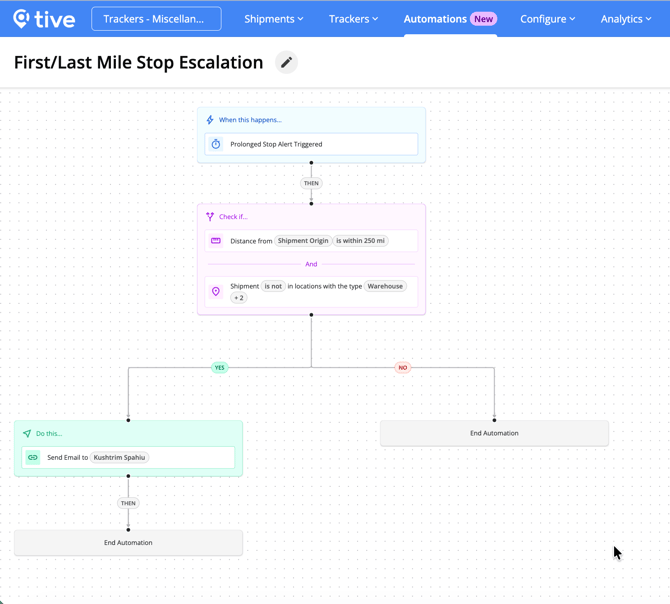
The Prolonged Stop alert must be applied to your shipments. This workflow is started by a Prolonged Stop alert. If that alert isn't active on a shipment, it never fires, and the workflow never runs.
When it escalates. The escalation email goes to the recipients you set during activation, using the existing Prolonged Stop alert email template. The action is logged as a timestamped comment in Comments, what was sent, and to whom.
When it doesn't. If the stop is outside the distance (mid-transit) or inside a recognized safe zone, the workflow ends. The outcome is still logged in Comments, including why no action was taken. Keep in mind that if the shipment is completed by a user or another workflow while monitoring is active, no escalation email is sent. Monitoring stops at shipment completion.
Note: Each Prolonged Stop alert is handled by its own workflow run. A new run doesn't start until the current one finishes, so the same stop is never worked twice. There's no duplicate processing of a single alert.
To avoid getting two emails about the same stop, we recommend removing notification recipients from the Prolonged Stop alert itself. This template already sends the escalation email through the workflow. If the underlying alert is also configured to notify those people, they'll receive two emails for one prolonged stop, one from the alert, one from the workflow. When you set up recipients below, keep the underlying alert's recipient list empty for those users.
Configuration
|
Parameter |
Detail |
|---|---|
|
Distance threshold |
Maximum distance from origin/destination that qualifies a stop. Default 250; toggle Miles/Kilometers. |
|
Select which locations count as safe zones (defaults to Warehouse, Distribution Center, Border Crossing). For step-by-step instructions on creating and editing locations, see Configuring locations here. |
The locations where a stop is treated as expected and not escalated. Defaults to locations with a Warehouse, Distribution Center, or Border Crossing location type; you can change which locations count during setup. If none match, no stop is treated as safe. |
|
Escalation email recipients |
One or more existing platform users from the dropdown. External email addresses and collaborators are not supported in this release. |
How safe zones work
Safe zones are the locations where a stop is treated as expected and not escalated. By default, these are your account's saved locations with a node type of Warehouse, Distribution Center, or Border Crossing, but you can change which locations count as safe zones during setup, so any location you define can be treated as an expected stop.
A stop is treated as a safe-zone stop if the tracker's location falls inside the location's geofence polygon, or within 5 km of its coordinates if no polygon is defined. In that case, the workflow ends without escalating.
You can define which locations count as safe zones in three ways. Pick the one that fits how your locations are organized:
- By name and address — select specific individual locations.
- By type — select all locations of a given type at once (e.g., all Warehouses, all Border Crossings). As you add locations of these types later, they're automatically included.
- By label — select all locations carrying a given label (e.g., "High-Risk Zone").
You can multi-select within any one of these — several names, several types, or several labels.
These three methods are mutually exclusive. When you switch from one tab to another, your selections in the previous tab are cleared, so your safe-zone set is always defined one way at a time. This prevents conflicting configurations.
When searching, only locations that have a saved geofence appear in the results, and your organization's own locations are listed before Tive-suggested ones.
For step-by-step instructions on creating and editing locations, see Configuring locations here.
If you have no locations matching the safe-zone types, nothing is treated as safe. By default, the template looks for locations with the safe-zone node types (Warehouse, Distribution Center, Border Crossing). If your account has no locations saved with those types, the safe-zone set is empty. The template finds nothing to match against, evaluates every stop as "outside a safe zone," and escalates all qualifying stops. This isn't an error; the template is doing exactly what it's told, against an empty list. To prevent over-escalation, make sure the locations you consider safe are saved with the correct node type, or set them as safe zones during setup, before turning the workflow on.
Constraints
- One active instance per account. You can run only one Red Zone Stop Escalation workflow at a time. You can't run two with different distance thresholds simultaneously. (This is the standard one-per-template limit that applies across the Workflow Automations.)
- Proximity depends on the shipment's origin and destination geofences. The distance threshold counts from outside the perimeter of the geofence.
- Email recipients must be platform users. External email addresses or shipment collaborators can't be escalation recipients.
FAQ
What counts as a safe zone? Any location you've set as a safe zone during setup. By default, these are locations with a Warehouse, Distribution Center, or Border Crossing node type, but you can adjust the set. A stop inside a safe zone's polygon, or within 5 km of its coordinates if it has no polygon, is suppressed.
The shipment stopped at a rest area that isn't one of our safe zones. Will it escalate? Yes. If the stop point isn't one of your designated safe zones, it's treated as outside a safe zone, and if it's also within the distance threshold, the escalation fires. To avoid this, add known legitimate stops to your safe zones during setup.
Will I be notified if it runs but doesn't escalate? No. Suppressed stops are logged in Comments but generate no notification.
Likely Theft Escalation
Packaging
This is available for customers on the Plus and Premium platform tiers.
|
Essential |
Plus |
Premium |
|
❌ |
✅ |
✅ |
Introduction
A tracker detecting light doesn't mean a shipment is being stolen, a trailer opening at a planned stop, or light leaking in while a truck is moving, is usually nothing. What makes light suspicious is when it happens while the shipment is stopped somewhere it shouldn't be.
This template watches for exactly that combination. It correlates two risk factors, a light alert and a confirmed stop outside your safe zones, to separate probable theft from false alarms, then escalates and tightens tracking the moment both line up.
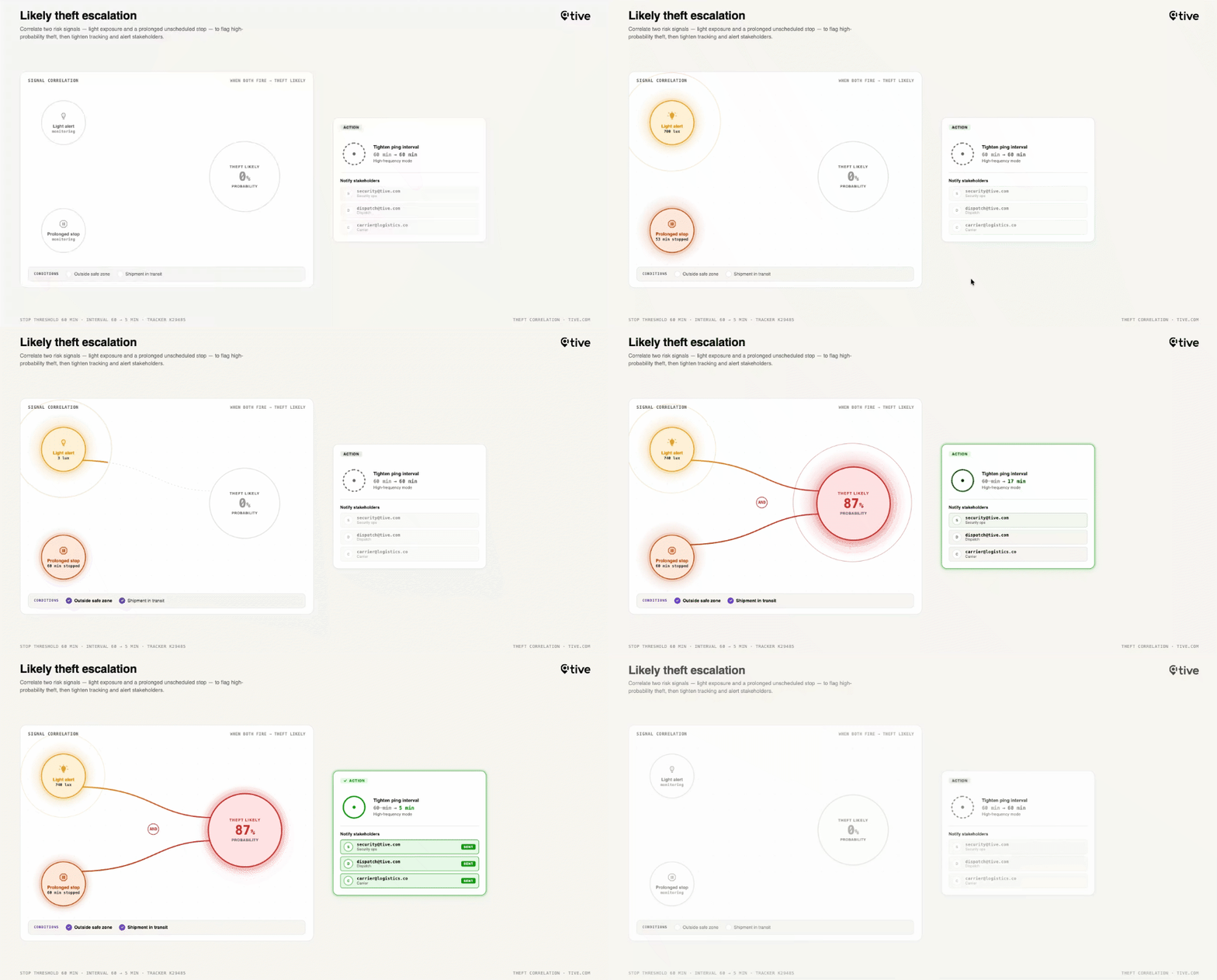
Disclaimer: This graphic is to demonstrate concepts and does not directly match platform functionality.
Goal: Distinguish a false alarm (light while moving) from a probable theft (light while stopped in an unsafe area), and automate the immediate security response.
How this differs from Risk Event Monitoring
Both react to light outside safe zones, but Likely Theft adds a second test: is the shipment actually stopped? It escalates only when light and a confirmed stop occur together. If the shipment is moving when the light fires, Likely Theft de-escalates itself. Risk Event has no such second check. Likely Theft trades breadth for precision.
Preconditions
This template depends on the Light alert. It's what starts the workflow. Keep your Light alert active and make sure it's set to trigger in transit; if it isn't applied or isn't firing in transit, the workflow never starts.
You do not need a Prolonged Stop alert for this template. This workflow determines on its own whether the shipment is stopped. It checks the shipment's recent location data directly rather than relying on a separate stop alert.
Keep this in mind if this workflow is replacing part of your existing alerting. Because the escalation comes through the workflow, decide when you want to be notified and adjust your existing alerts accordingly. Don't remove the Light alert, which this template needs to run.
How it works
Trigger. The workflow starts when a Light Alert fires and all of these are true at the moment it fires:
- Shipment phase is In-Transit
- Battery is at or above 50%
- Mode is Road or Rail
- Location is not a Warehouse, Distribution Center, or Border Crossing
If any of these aren't met, the workflow doesn't start.
Step 1: The Immediate response
As soon as the workflow starts, it does two things at once:
- Notifies your configured recipients with an initial light-alert email. Keep your alert recipients configured here in order to receive the email notification.
- Switches the tracker to your selected high-frequency profile, turning on GPS and moving to 5-minute intervals.
If the device is offline or out of cellular range, Workflow Automations keeps retrying until it reconnects.
Step 2: Is the shipment actually stopped?
After the immediate response, Workflow Automations checks whether the shipment is genuinely stopped. It looks at the last 1–2 hours of data and requires at least 3 valid location points with no gaps larger than 30 minutes to make a confident call. If the data is insufficient, Workflow Automations assumes the shipment is moving (Branch B), so low-quality data can't cause a false escalation.
- Branch A Stopped (high risk): The tracker stays on the high-frequency profile, and a "Potential Theft Escalation" email goes to your recipients.
- Branch B Moving (false alarm): The workflow reverts the tracker to the profile it had before, de-escalating itself to save battery.
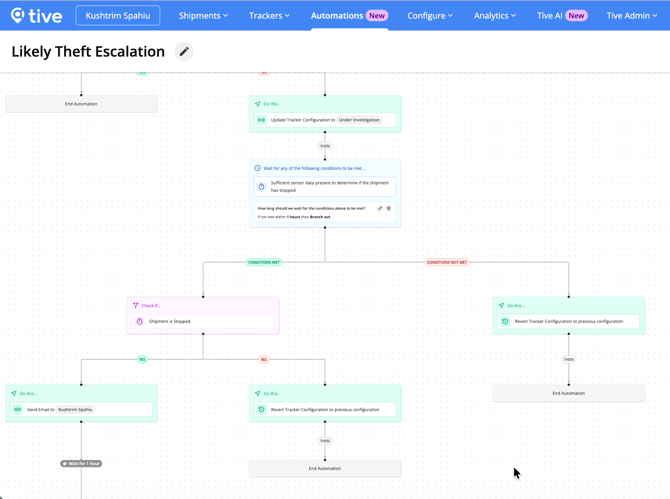
How it ends:
- Manual override: If someone manually changes the device profile while the workflow is running, Workflow Automations stops and defers to the person — it won't revert settings or send further emails.
- Shipment completed: If the shipment is marked complete while running, it ends immediately.
Configuration
|
Allowed |
Not allowed |
|---|---|
|
Select the high-frequency device profile to apply |
Change the trigger |
|
Select email recipients (platform users or external contacts) |
Add / remove / reorder steps |
|
Set the shipment phase, the light alert must occur in |
|
|
Set the leg mode (Road / Rail) that qualifies |
|
|
Select which locations count as safe zones (defaults to Warehouse, Distribution Center, Border Crossing). For step-by-step instructions on creating and editing locations, see Configuring locations here. |
|
|
Toggle the workflow active/inactive |
Constraints
- One instance per shipment at a time. While a run is active on a shipment, a second light alert on that same shipment is ignored. No new instance starts until the current one finishes.
- The high-frequency profile and the original profile must both exist for the full run. The workflow switches to your selected high-frequency profile and reverts to whatever profile was active when it started. If either is deleted mid-run, the workflow can't revert settings at the end.
Before you start (applies to all templates)
- Apply the triggering alert to your shipments. The most common reason a workflow never runs. No alert on the shipment means no trigger.
- Platform tiers vary by template. See each template's header. Risk Event and Likely Theft require Plus/Premium platform; Route Deviation requires Premium platform; Red Zone Stop Escalation requires Plus/Premium.
- By default, only Admin users can see, edit, activate, or deactivate workflows. However, Admin users can grant the Add/Edit Workflows permission to other roles under Users → Manage Roles.