
Why Use the Tive Mobile App?
The Tive mobile app gives customers 24/7 access to real-time shipment data, allowing them to monitor alerts and stay informed, even without a desktop computer.
This feature solves:
- Difficulty accessing shipment data on the mobile browser due to non-optimized layouts.
- Delayed response time to critical shipment alerts.
- Limited visibility for users who manage shipments while traveling or in the field.
There are a number of benefits and advantages of using the Tive mobile app.
- Instant risk detection (theft, temperature excursions, spoilage).
- Quick access to shipment status, alerts, and tracker activity.
- Easy visibility into shipment routes, geofences, and alert markers.
- Supports collaborators: shared shipments are automatically visible.
Note: We are currently supporting Android 8.0 and iOS 16.4 for both the Tive Tag app and the Tive app.
Who can use the mobile app
- Available on Plus and Premium tiers (including Retail variants).
- Users on Essential/Retail Essential tiers will receive an error when attempting to log in.
How It Works
1. Downloading the App
The Tive mobile app is available on the Apple App Store and Google Play Store.
Search for “Tive” or use the platform-specific links.
Note: Tive has two apps:
- Tive Tag (for Tag-only customers)
- Tive (for real-time trackers and shipments)
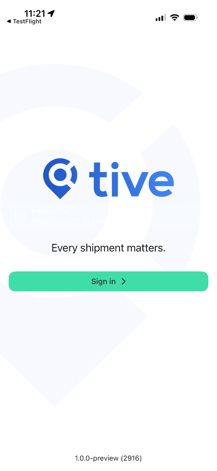
2. Logging In
- Open the app.
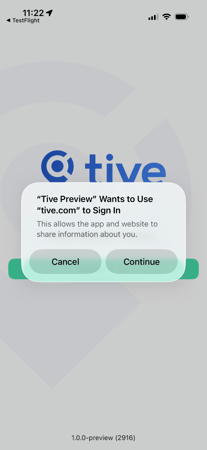
- Tap Sign in.
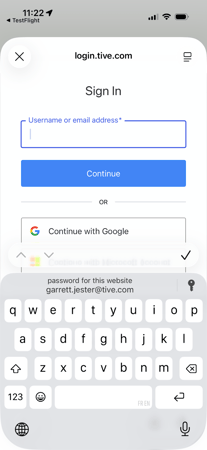
- A browser window opens → enter your Tive platform credentials.
- You will be taken to the In-Transit shipment list.
Viewing Your Shipments
Shipment List Overview
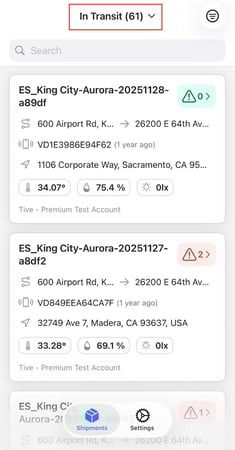
The shipment list displays all shipments organized by:
- In-Transit
- Upcoming
- Completed
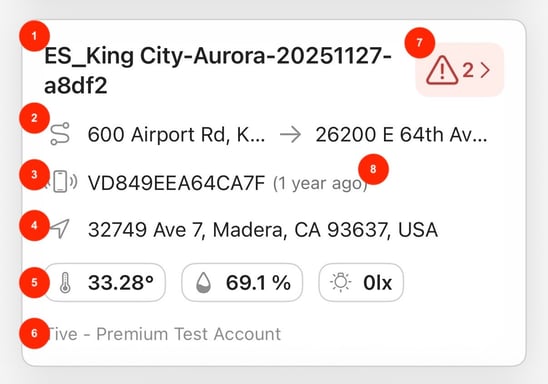
Each shipment card includes:
- The unique shipment ID that was entered when the shipment was created.
- The origin and destination of the shipment
- The IDs of the trackers attached to the shipment
- The shipment’s last known location
- The latest sensor readings from the device. If one of these readings triggered an alert, it will be highlighted in red.
- The platform subaccount that the shipment belongs to.
- The alert count on the shipment, color-coded based on severity.
- The time that the tracker last connected to the Tive platform.
Filtering by Status
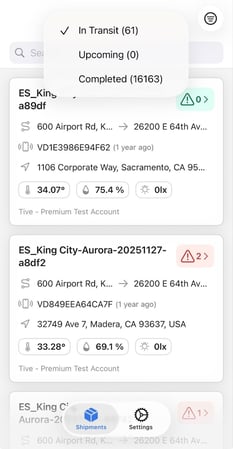
- Tap the status dropdown at the top.
- Select the status you want to view.
Filtering by Subaccount
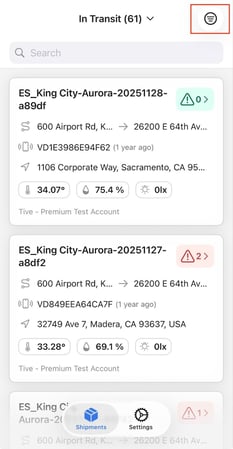
- Tap the Filters icon (top right).
- Under Account, choose a subaccount you have access to.
- Tap Save.

Other Filters Available
- Ship From
- Ship To
- Tracker type (Tag vs. Tracker)
- Show Delivered Only (Yes/No)
Viewing Collaborator Shipments
If you're added as a collaborator, the shipment appears regardless of the subaccount.
Searching for a Shipment
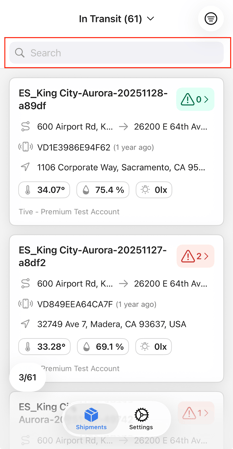
- Tap the search bar.
- Enter Shipment ID, Tracker ID, or location.
- (Android) Press Search.

Viewing a Shipment: Shipment Details
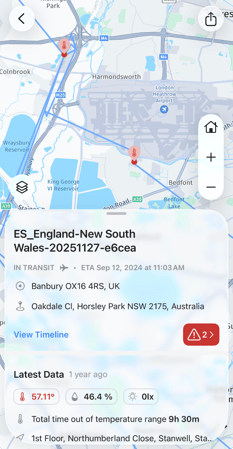
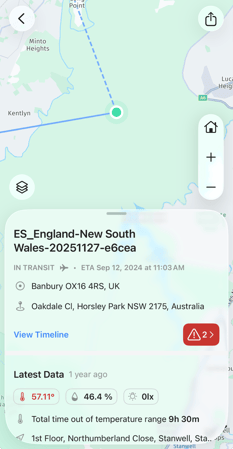
Shipment Map
When opening a shipment, you will see:
- Origin & Destination markers
- Current location marker (color-coded by location method)
- Alert markers (clustered when close together)
- Geofences (leg origins/destinations, custom if applicable)
- Smart route deviation geofences
- Upcoming path (dashed line)
- Completed path (solid line)

Zooming
- Pinch-to-zoom or use + / −.
- Tap Home to reset.
- Swipe down the shipment card for a full-screen map.
Additional Details in Shipment
- Commodity
- Custom fields (text-based only)
- Planned events & legs
Shipment Timeline
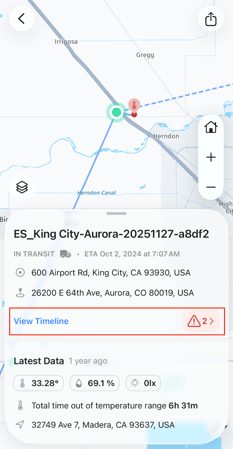
How to Access
- Open a shipment.
- Tap View Timeline.
Timeline Format
- Chronological (earliest → latest)
- Grouped by day
- Timestamps follow the device's timezone
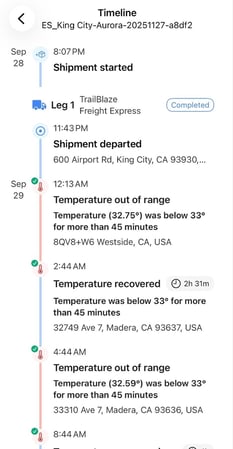
Leg Markers Include:
- Leg number or custom name
- Mode icon
- Carrier
- Container number
- AWB number
- Actual departure/arrival timestamps
Timeline Event Types
|
Event |
Description |
|
Alert Triggered |
Threshold breached; active alerts in red; duration shown if applicable |
|
Alert Recovered |
Alert returned to safe range; duration moves to recovered event |
|
Shipment Created |
Shows the creator's name |
|
Shipment Started |
Shipment begin time |
|
Shipment Completed |
Shows who completed it, if manual |
|
Scheduled Arrival (Pending) |
Based on planned times |
Resolved Alerts
- Marked with a green check on both Triggered and Recovered events.
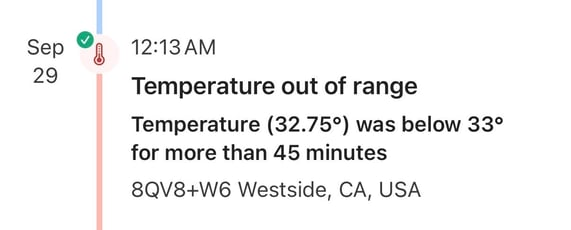
Note: We do not currently support cumulative temperature or cumulative probe temperature alerts in the shipment timeline.
Settings
How to Access
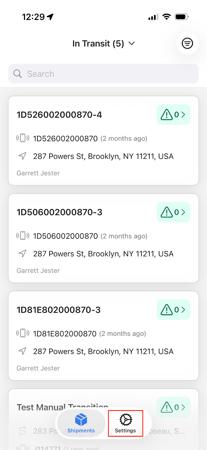
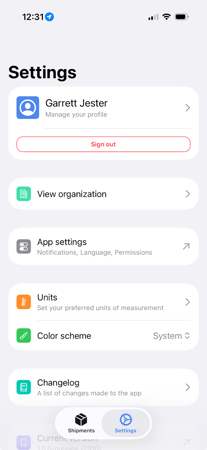
Tap Settings (bottom navigation).
Sign Out
Settings → Sign out
Check App Version
Settings → scroll to bottom → Current version
Change App Language
Supported languages: English, Spanish, French, Norwegian
- Settings → App settings
- You will be redirected to device-level language settings
Feature Requirements & Limitations
The mobile app cannot currently perform the following:
Shipment Creation
- Not supported in-app (only via API or desktop platform)
Editing Shipments
Editing is not supported, including:
- Changing locations
- Attaching alert presets
- Editing legs
- Managing collaborators
- Changing shipment ID
- Adding comments
- Resolving alerts
Tracker-Only Data
Tracker data is only visible if the tracker is attached to a shipment.
Changing Tracker Settings
Not supported on mobile.
Advanced Filters
Some desktop filters are not included.
Timeline Filters
Cannot filter the timeline by event type.
Public Share Links
You can share private links, but you cannot enable public links from mobile.
Deeplinking
Opening a shipment link (e.g., from an alert email) redirects directly to the app.
Key Points to Know
- Users can view, search, and filter shipments by status or subaccount.
- Each shipment includes location, tracker details, sensor readings, and alerts.
- The map view shows the current location, geofences, alert markers, and shipment paths.
- The shipment timeline provides a chronological view of all shipment events.
- The app supports collaborator access, showing shared shipments automatically.
- Basic settings are available, including language selection, version info, and logout.
- The app is available only on Plus and Premium tiers.
Best Practices
Maximizing Your Mobile Monitoring
- Use filters + search together to find critical shipments quickly.
- Zoom into alert clusters to identify incident locations.
- Keep your device language & time settings accurate for consistent timestamps.
- Use the Upcoming tab to prepare for future arrivals.
- Use the app for rapid responses and the desktop for complex editing.
Security
- Always log out if using a shared device.
- Ensure app updates are enabled to get the latest improvements.
Need Help?
If you have any additional questions, reach out to support@tive.com for help!