
Getting Started as a Tive Collaborator
When a shipment is shared with you, you will receive an invitation to view real-time tracking data via the Tive platform. Follow these steps to set up your account and begin monitoring your shipments.
1. Receive the Invitation
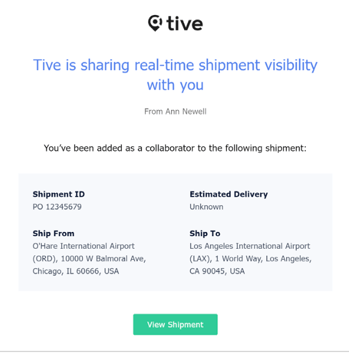
- You will receive an email from Tive Notifications (no-reply@tive.io).
- The email subject will state that Tive is sharing real-time shipment visibility with you.
- Open this email and click the View Shipment button to begin.
2. Account Setup
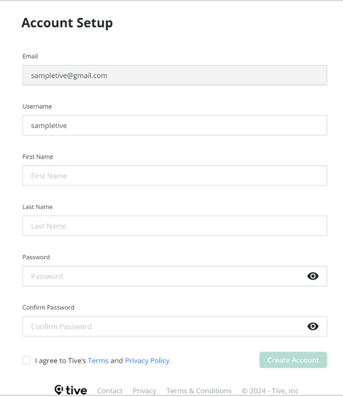
If this is your first time using Tive, you must complete a one-time account registration.
- Fill in the required fields on the Account Setup screen.
- Create a password; this will be used for all future shipments shared with your account.
- Once the fields are complete, click Save.
3. Set Profile Preferences
Upon your first login, you will be prompted to customize your platform experience:
- Regional Settings: Set your Time Zone, Language, and preferred units for Distance and Temperature.
- Alerts: Opt-in for email and/or text notifications to stay updated on shipment status.
4. Monitor Shipments
- After saving your preferences, you can monitor your specific shipment in real-time.
- To see every shipment shared with you, select All Shipments from the Shipments drop-down menu in the top left corner.
- From here, you can filter views by In Transit, Upcoming, or Completed shipments.
5. Complete Shipments
Collaborator permissions are governed by the organization that owns the shipment trackers and shared the initial link:
- Organization-Side Control: Access is controlled entirely by the party sharing the shipment (the sender/vendor).
- Customer Programs: For customer programs requiring consistent visibility across multiple shipments, access should be requested directly from your vendors or suppliers.
- Requesting Access: If you are a receiver who needs visibility into incoming goods, you should ask your shipping partners to add you as a permanent collaborator on their Tive account or carrier profiles.
Note: As a collaborator, your access is typically "Contributor", whereas for collaborators under specific programs (such as Retail), the access is typically set to “Editor.” Any changes to the shipment details or the list of authorized viewers must be handled by the primary account holder.
Managing Carrier Collaborators
By attaching contacts to a carrier, you can provide real-time visibility to your partners without manually adding them to every new shipment.
1. Access the Carriers Menu
- From the top navigation bar, select the Configure drop-down menu.
- Click on Carriers to view your list of existing carriers.
2. Create or Select a Carrier
- To add a new carrier: Click the Create Carrier button in the top-right corner.
- Enter the Name and select the transportation Mode (e.g., Road, Air, Ocean, or Rail).
- Click Create.
- To edit an existing carrier: Click on the carrier's name from the list to open its details panel.
3. Add Contacts as Collaborators
Once a carrier is selected or created, you can manage the individuals associated with it:
- In the carrier details panel, click the triple-dot (...) menu and select Edit.
- Under the Contacts section, you can add specific individuals by clicking Create new Contact.
- Ensure the "Add contacts as collaborators during shipment creation" checkbox is selected.
- When this is active, these contacts are automatically added as collaborators to any shipment where this carrier is assigned.
- Fill in the contact's First Name, Last Name, and Email (required for sharing).
- Click Save Contact and then Save the carrier profile.
4. Automatic Sharing
- When you create a new shipment and select this carrier, the attached contacts will automatically receive an invitation email identical to the one described in the "Getting Started" section.
Note: You can also assign collaborators to specific Locations. When a shipment is created using a saved "Ship From" or "Ship To" address, those collaborators will be automatically included.
If you need any additional information or help, contact support@tive.com.