
The End-Of-Shipment (EOS) Report is designed to provide immediate, automated visibility into shipment conditions the moment a delivery is completed. This feature is essential for maintaining strict compliance with cold chain policies and ensuring all stakeholders have the data they need without manual intervention.
Why Use the End-Of-Shipment Report?
This feature solves the problem of delayed reporting and manual data sharing, which is critical for suppliers working with major retailers.
- Automated Compliance: Automatically send temperature records to receivers and distribution centers to meet cold chain policy requirements.
- Seamless Delivery: Reports are sent directly to your email or your collaborators' emails upon shipment completion.
- Reduced Manual Work: The report is generated when the shipment is created and remains in a "pending" state until delivery, eliminating the need to pull data after the fact manually.
- Audit Readiness: Provides a reliable digital paper trail for inspection and receiving purposes at distribution centers.
How It Works
1. Accessing the Feature
The End-Of-Shipment report can be accessed through three primary methods:
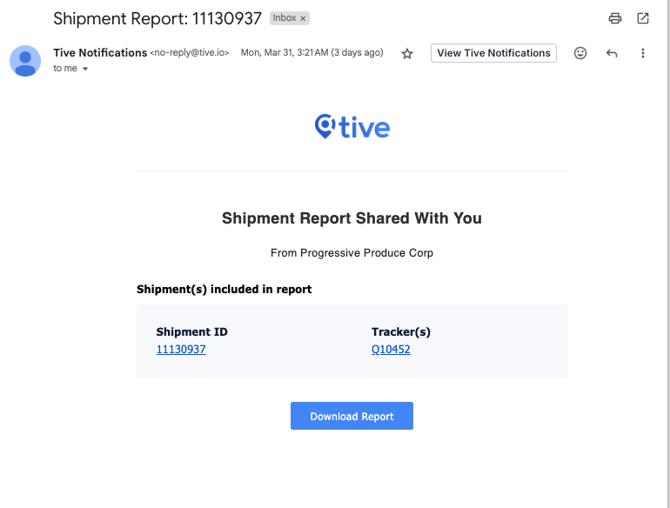
- Email: Click the Download Report link in the automated notification sent to your inbox.
- Email: Attached PDF directly in the email.
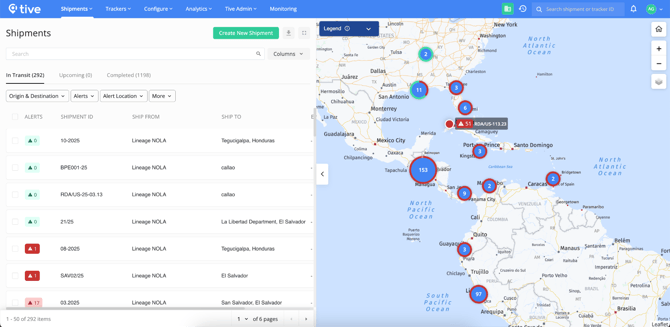
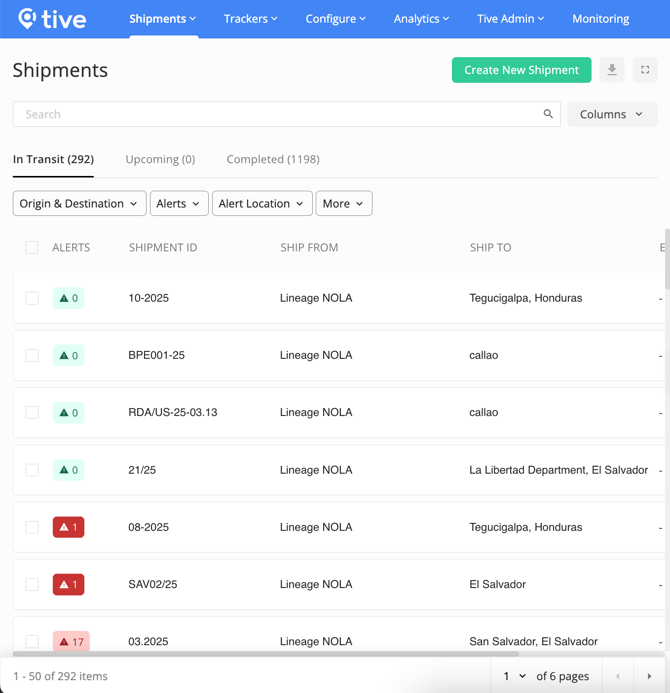
- Tive Platform: Log in to the platform at https://platform.tive.com.
2. Enabling and Setting Up
To use this feature within the platform, ensure you have already configured your Locations, Collaborators, and Alert Presets.
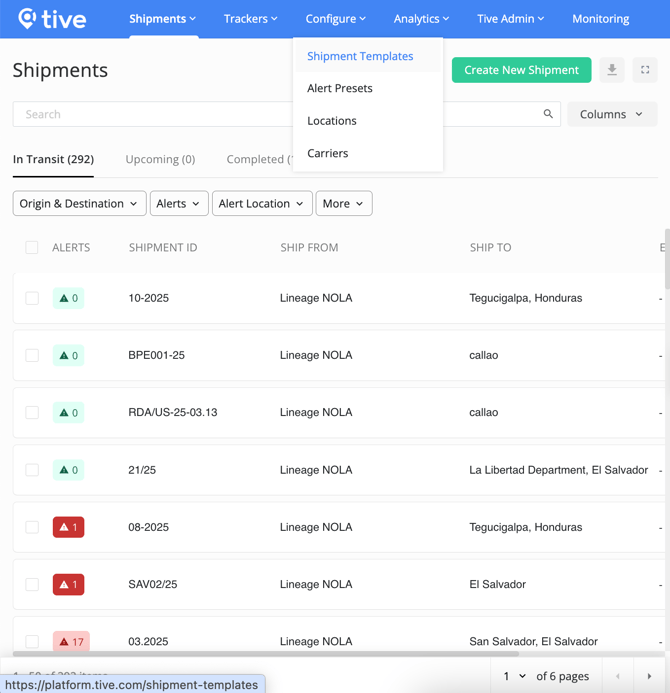
- Navigate to Configure → Shipment Templates.
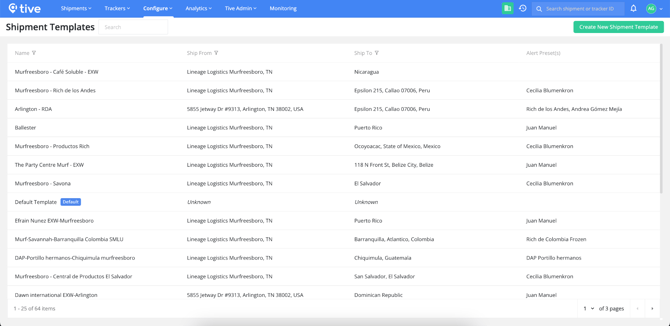
- Select the specific Template you wish to edit.
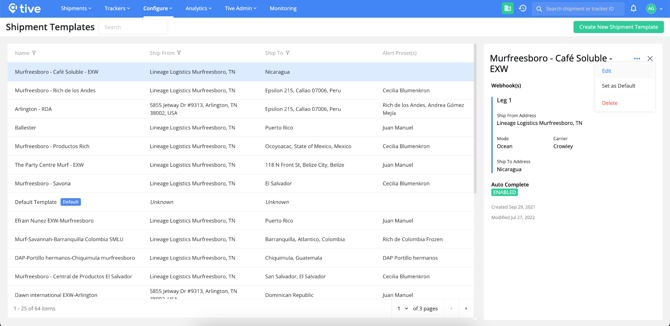
- Click the three dots (options menu) and select Edit.
3. Turning on the Report
Once inside the template editor:
- To turn on the report attachment, the organization must enable it on the account settings page and toggle on the "Attach report to email" option.
- Scroll to the bottom section: "Automatically send temperature report on shipment completion".
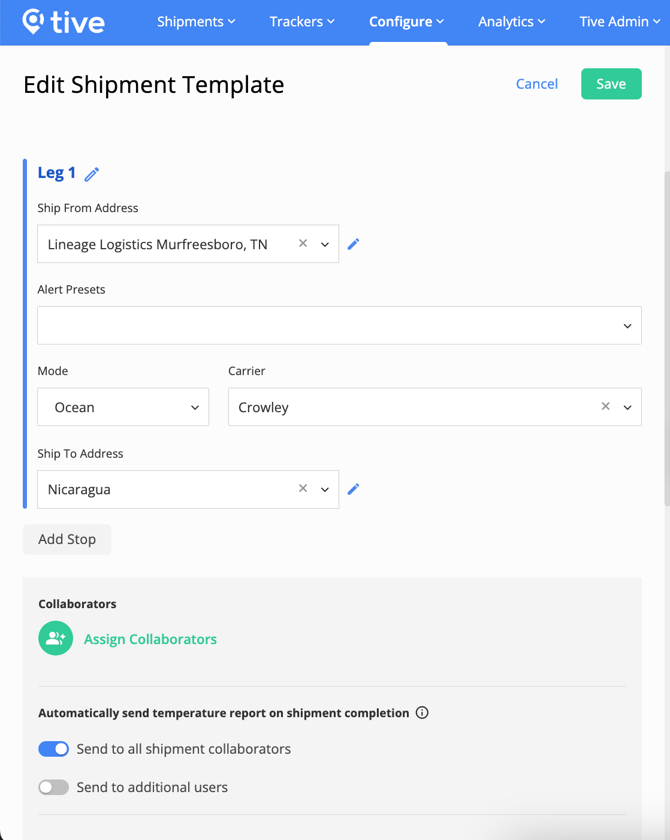
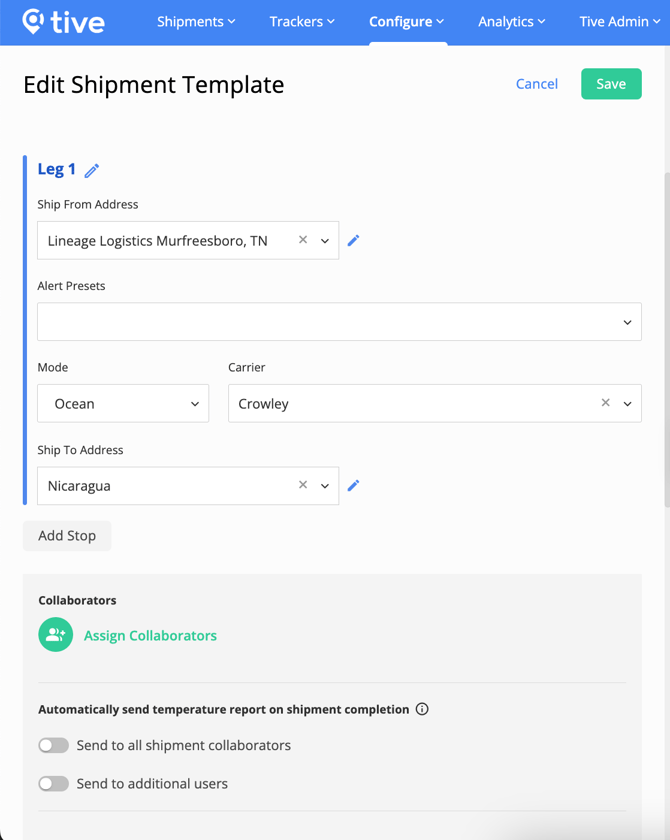
- Toggle the switch for "Send to all shipment collaborators" to ON.
- Click Save.
4. Expected Results
Upon shipment delivery, all designated collaborators will receive an email from Tive Notifications containing the Shipment ID, Tracker ID, and a direct link to Download Report.
Key Points to Know
- Collaborator Access: Enabling "Send to all shipment collaborators" automatically grants access to every collaborator assigned to that Template's location.
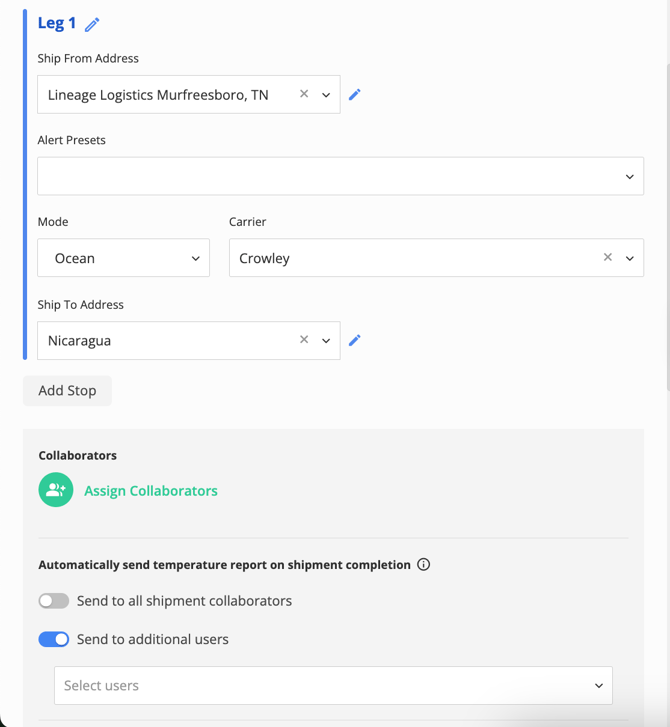
- External Sharing: If you need to send reports to stakeholders outside your organization (like a third-party retailer), enable "Send to additional users" to manually add their email addresses.
- Attachment Support: You can configure the system to have the report sent as an actual attachment within the email for easier filing.
Best Practices
- Standardize with Templates: Use Shipment Templates for recurring routes to ensure EOS reports are consistently sent to the correct distribution centers every time.
- Verify Collaborators Early: Before starting a shipment trial, double-check that your "Ship To" location has the correct collaborators assigned so the report reaches the receiver instantly upon arrival.
- Retailer Alignment: For suppliers moving to Tive from other systems, use these automated reports to satisfy retailer cold chain policies by providing high-fidelity temperature records immediately upon receipt.